
Jia Dashboard LogoJia Name Logo
Help
Center
Contact Support
Jia Dashboard LogoJia Name Logo
Powered by White Cloak Technologies, Inc.20th Floor, F. Ortigas Jr Strata 2000 Building
San Antonio, Ortigas Center, Pasig, 1605 Metro Manila
LinkedInFacebookTikTok
Sales Team: inquire@hellojia.ai
Development Team: hello@whitecloak.com
© Copyright 2026. All rights reserved.
HomeChevron RightDocumentationApplication TimelineChevron RightEndorse a candidate
Getting started
  • Customize your Dashboard
Careers
  • Create your first career
  • Create a linked career
  • Update career status
  • Customize career settings
Application Timeline
  • Endorse a candidate
  • Drop a candidate
  • Reconsider a candidate
Candidates
  • Import a candidate
  • Quick Search
  • AI Search
  • Advanced Filters
  • View a candidate profile
  • Add a comment
  • Invite to a job
Organization
  • Invite new members
  • Roles
Job Portal
  • Apply to a job
  • AI Interview
  • Manage CV
Subscription, Billing, and Support
  • Subscription Plans
Projects
  • Create a project
  • Link a career
Requisition
  • Create a requisition
  • Requisition Approval
Talent Vault
  • Set-up Talent Vault
Email
  • Inbox
  • Templates
  • Automations
  • Reminders
  • Bulk Email
  • Integration
  • Custom Domain
Miscellaneous
  • Notifications
  • Feedback
Endorse a candidateLast updated: 03 Apr 2026
Application Timeline

Moving a candidate to the next stage can be done quickly through the menu or by using the drag-and-drop interface.
Move Manually (Drag and Drop)

  • Click and hold the candidate’s card.
  • Drag it horizontally to the desired new stage and release.

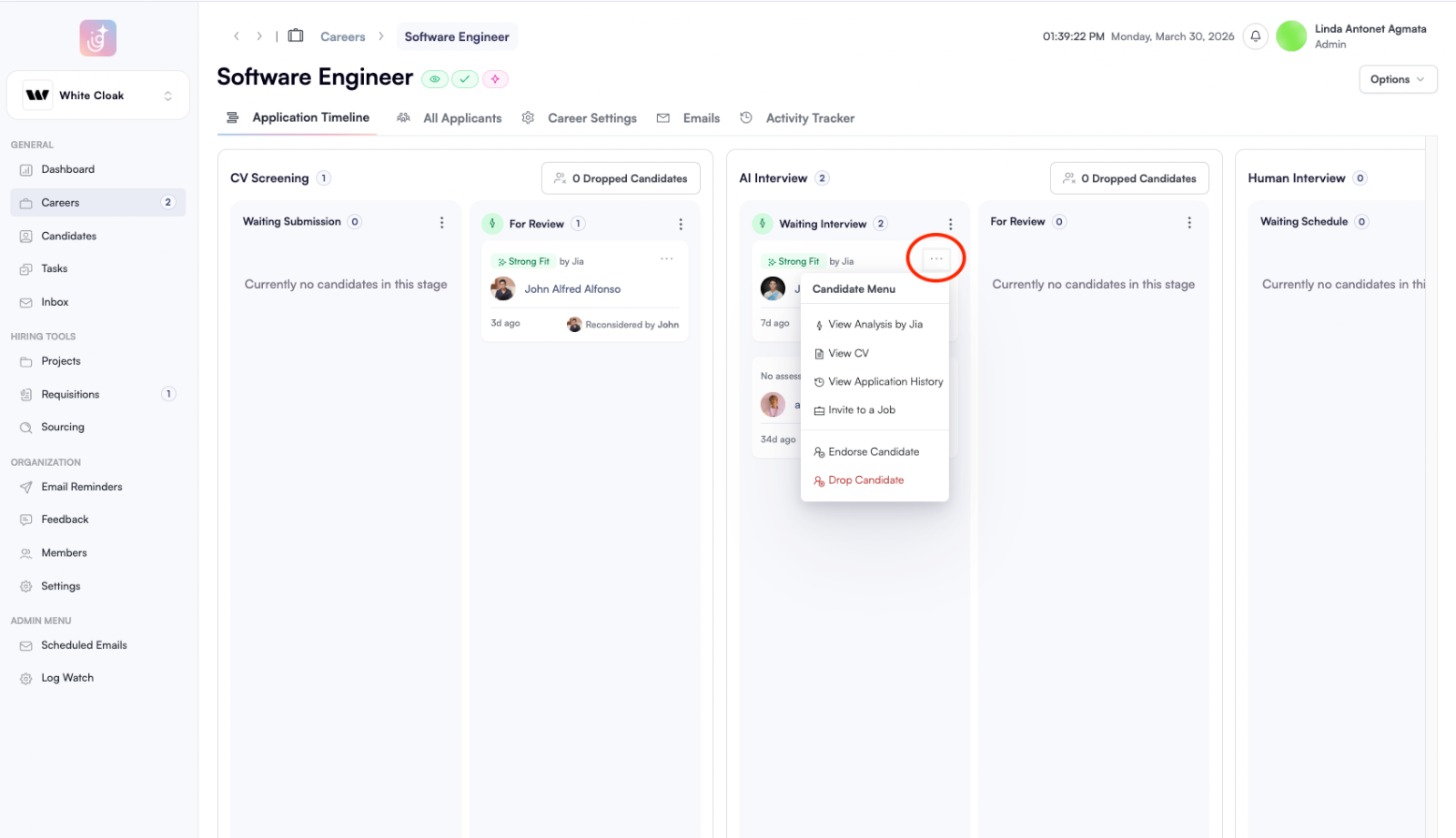
Endorse via the Menu

  • Locate the candidate’s card in your pipeline.
  • Click the three dots (⋯) icon.
  • Select Endorse. The candidate will automatically advance to the next stage. endorse-a-candidate-01.png
  • Recruiter Evaluation: When prompted, include your evaluation notes to provide context for the next hiring manager.
  • Email Automations: Before endorsing, double-check that your email triggers are correctly configured. This ensures the candidate receives the right update once they move.
    • To configure these settings, visit the this link.
Pro-Tip

If you have automated emails turned on, the candidate will receive a notification the moment they are endorsed. Ensure your templates are polished before moving them!
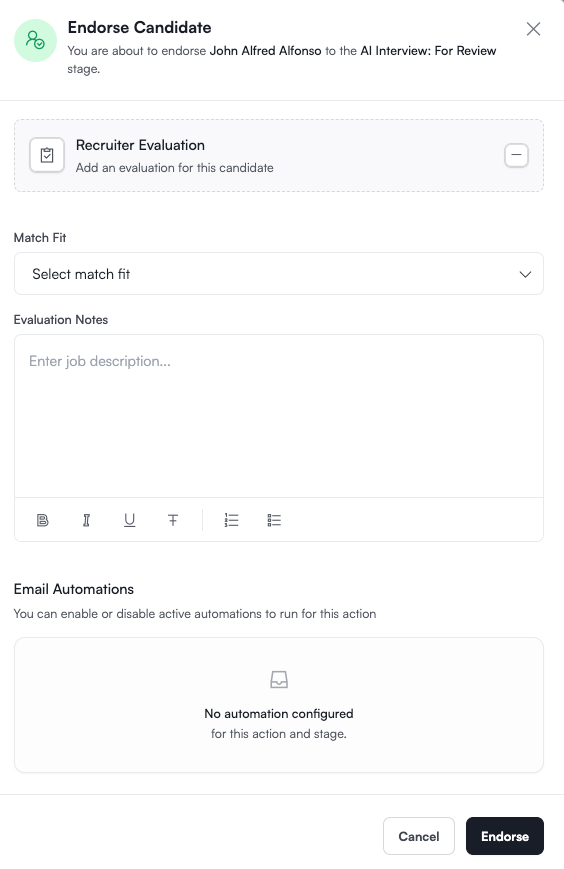
endorse-a-candidate-02.png

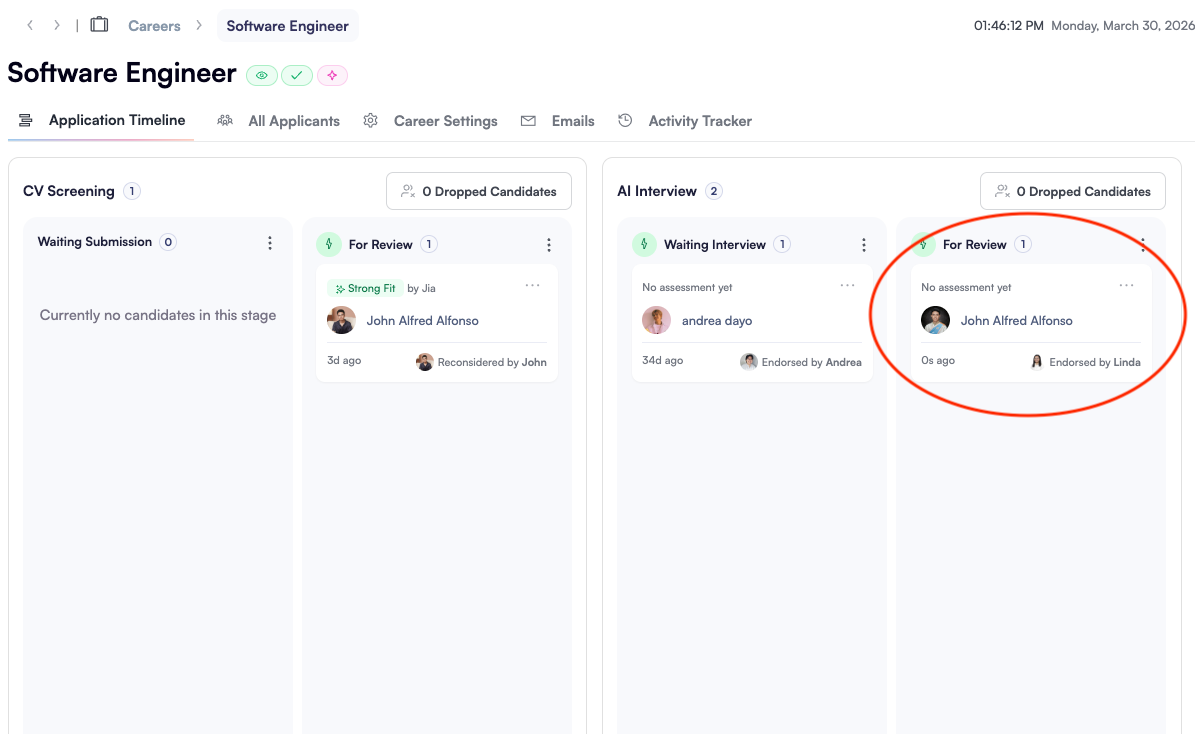
  • Once Endorsed, candidate will automatically move to the next stage. endorse-a-candidate-03.png
Was this article helpful?
Loading feedback…