Jia Dashboard LogoJia Name Logo
Help
Center
Contact Support
Jia Dashboard LogoJia Name Logo
Powered by White Cloak Technologies, Inc.20th Floor, F. Ortigas Jr Strata 2000 Building
San Antonio, Ortigas Center, Pasig, 1605 Metro Manila
LinkedInFacebookTikTok
Sales Team: inquire@hellojia.ai
Development Team: hello@whitecloak.com
© Copyright 2026. All rights reserved.
HomeChevron RightDocumentationCandidatesChevron RightImport a candidate
Getting started
  • Customize your Dashboard
Careers
  • Create your first career
  • Create a linked career
  • Update career status
  • Customize career settings
Application Timeline
  • Endorse a candidate
  • Drop a candidate
  • Reconsider a candidate
Candidates
  • Import a candidate
  • Quick Search
  • AI Search
  • Advanced Filters
  • View a candidate profile
  • Add a comment
  • Invite to a job
Organization
  • Invite new members
  • Roles
Job Portal
  • Apply to a job
  • AI Interview
  • Manage CV
Subscription, Billing, and Support
  • Subscription Plans
Projects
  • Create a project
  • Link a career
Requisition
  • Create a requisition
  • Requisition Approval
Talent Vault
  • Set-up Talent Vault
Email
  • Inbox
  • Templates
  • Automations
  • Reminders
  • Bulk Email
  • Integration
  • Custom Domain
Miscellaneous
  • Notifications
  • Feedback
Import a candidateLast updated: 03 Apr 2026
Candidates

The Candidates module will serve as your database and allows you to add talent to your pipeline either by bulk-uploading CVs or by using a structured spreadsheet.

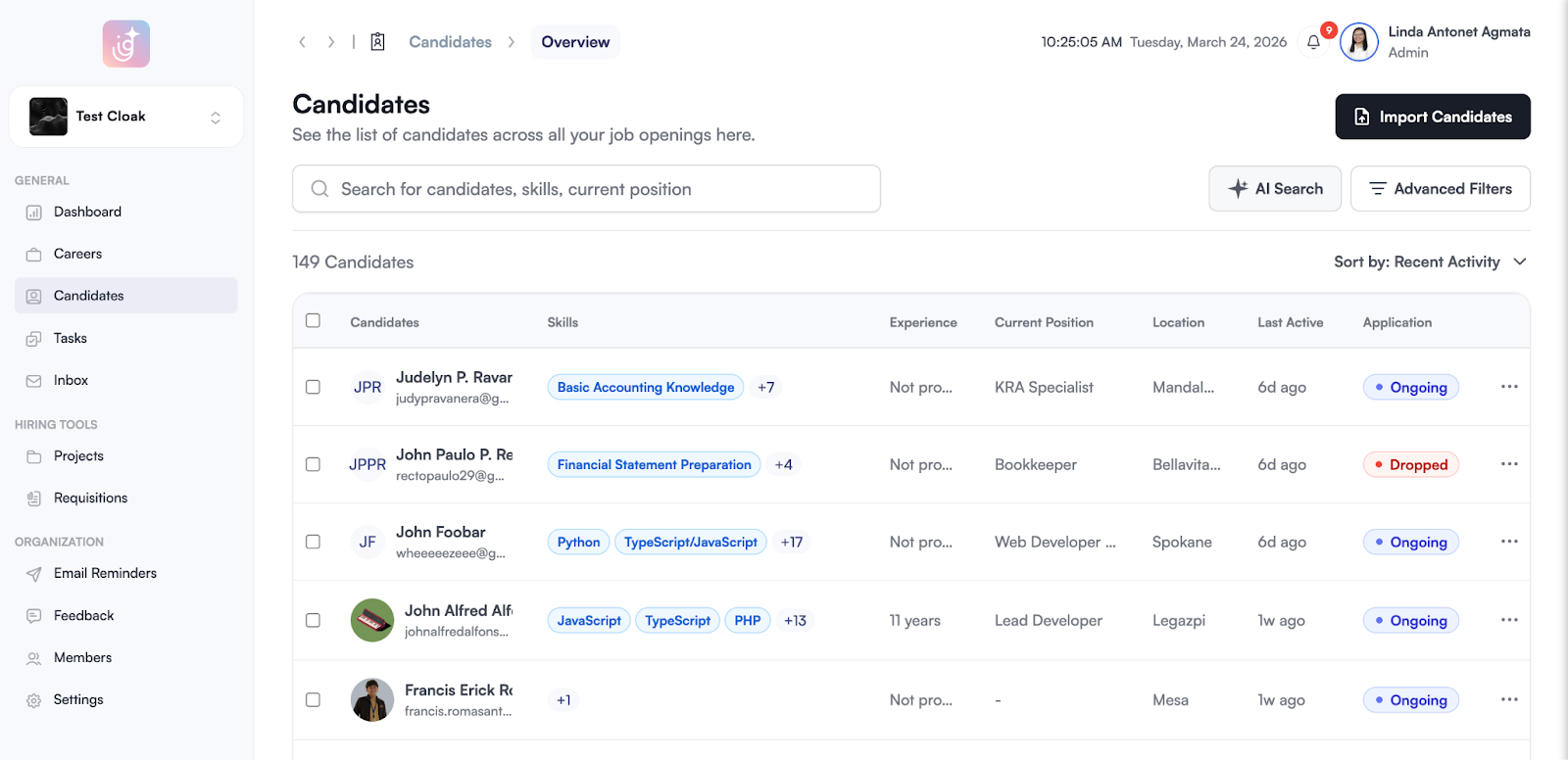
  • In the candidates module, choose Import Candidates on the upper right side of the screen. import-candidate-01.png

Option A: Bulk Upload CVs

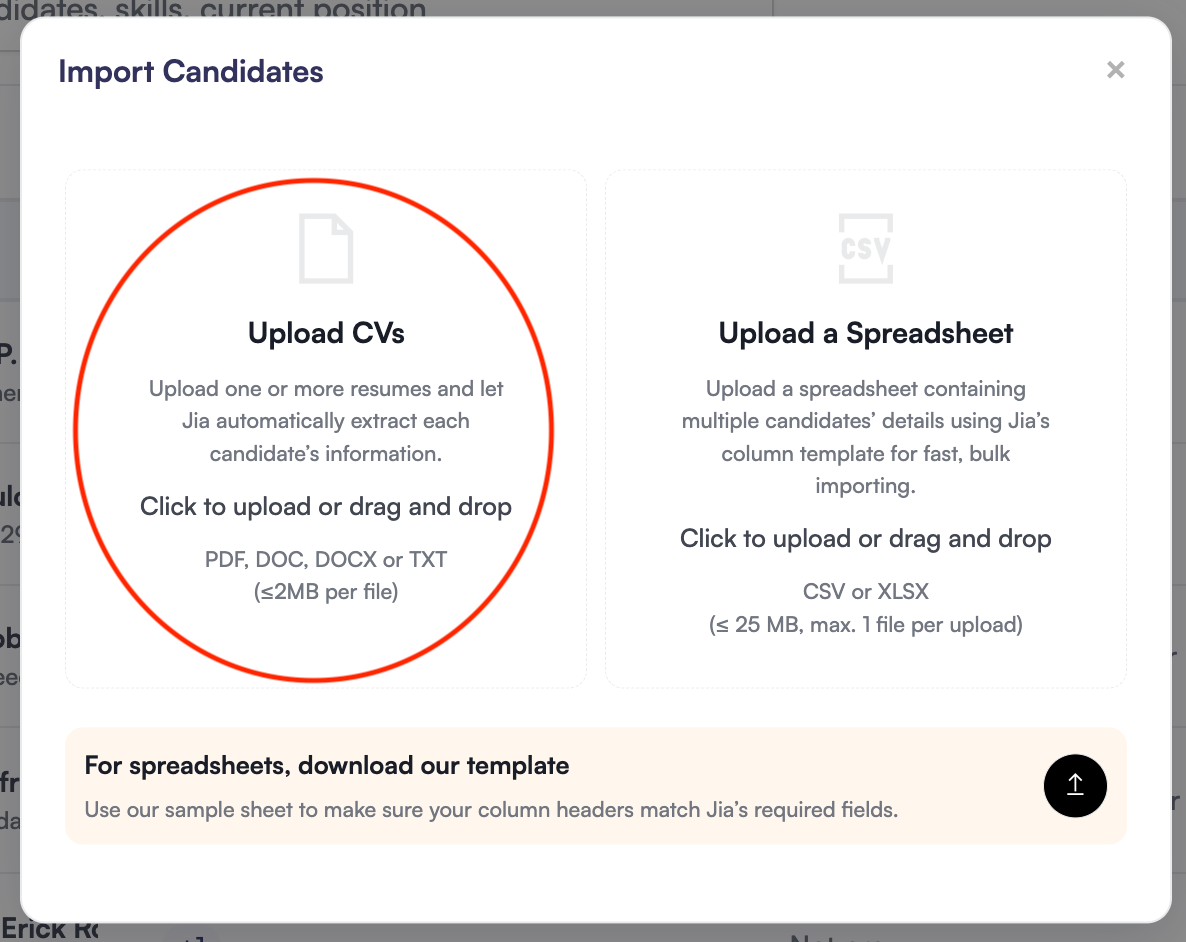
  • To upload CVs in bulk, click upload CVs and choose the files you want to upload. Jia accepts the following file formats: PDF, DOC, DOCX, or TXT. Each file should not exceed 2MB. import-candidate-02.png

Option B: Spreadsheet Import

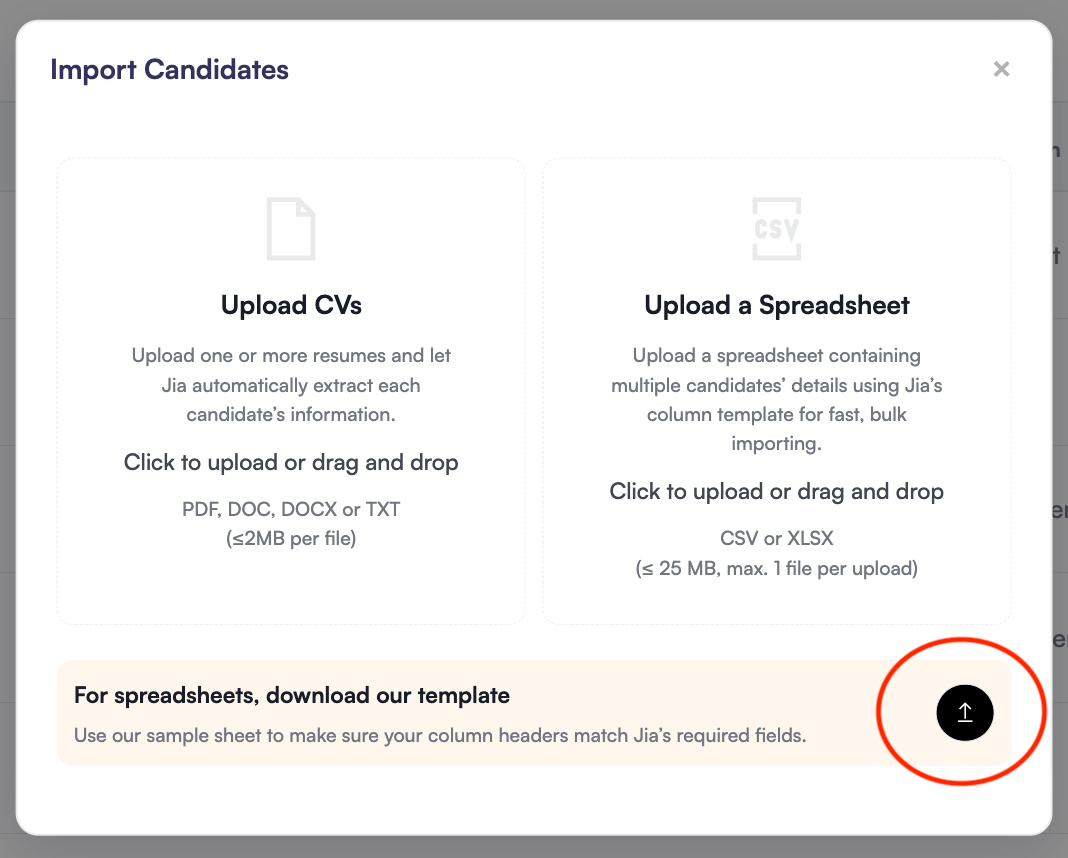
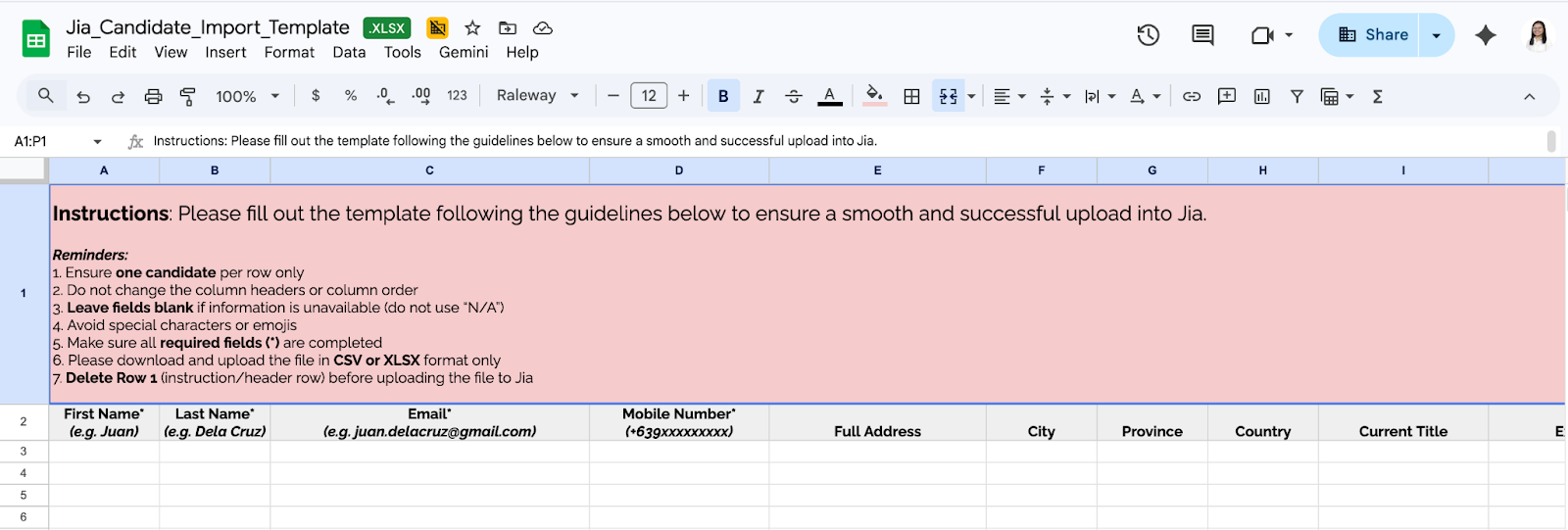
  • To upload candidate information via spreadsheet or excel file, download our template and follow the instructions on the first row. import-candidate-03.png import-candidate-04.png
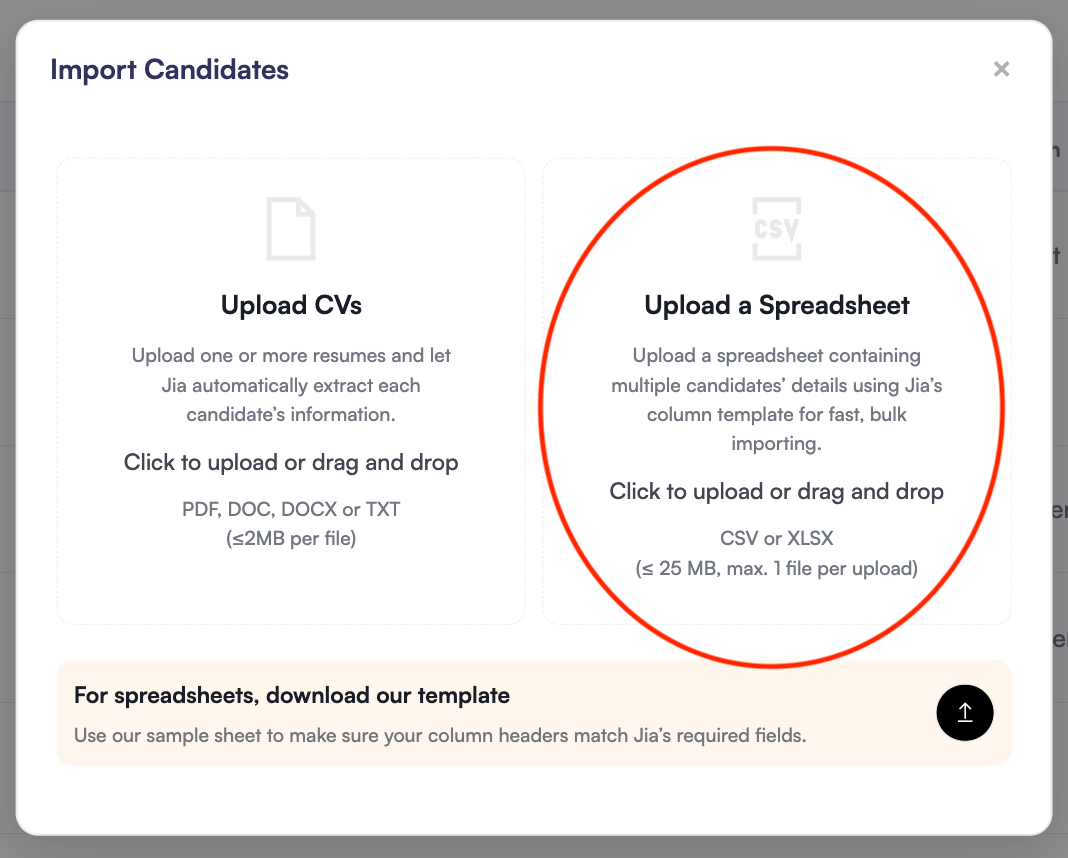
  • Once your file is ready, upload it by clicking Upload a Spreadsheet and choose the file. import-candidate-05.png

Review and Fix Errors

If the system detects missing or incorrect information:

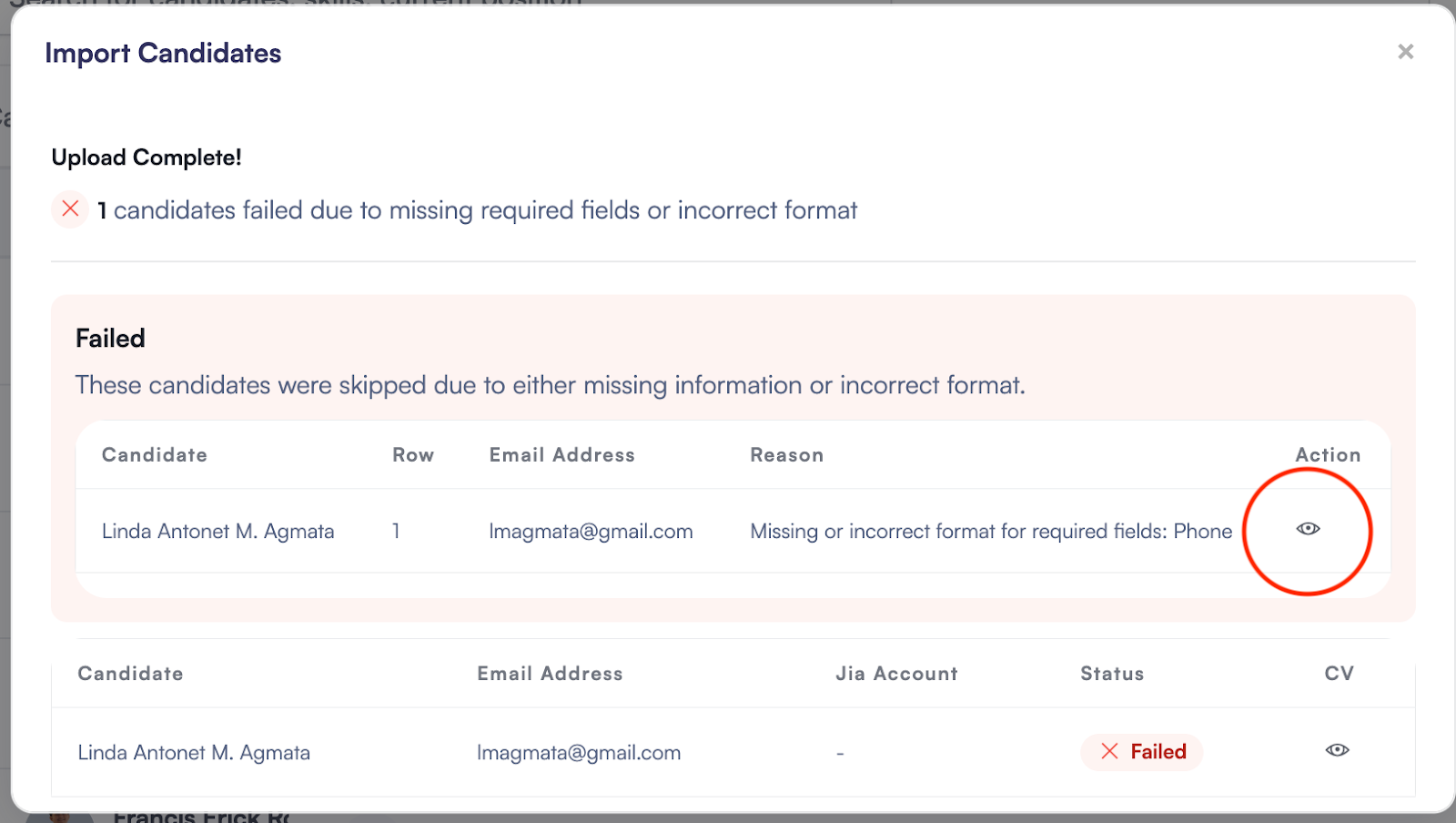
  • Identify Errors: Click the Eye icon to view specific issues. import-candidate-06.png

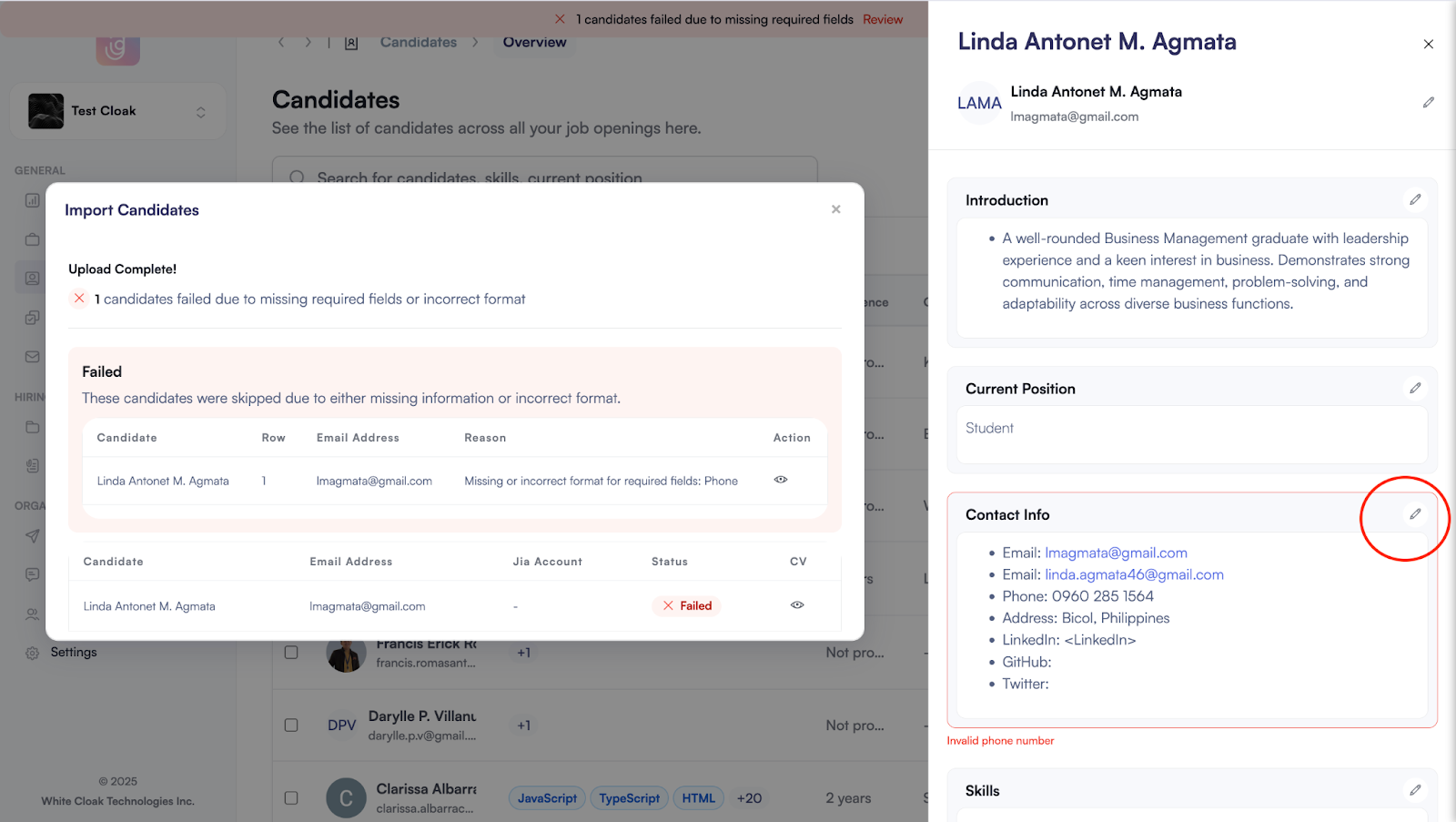
  • To edit the information, click the pencil icon (✎). import-candidate-07.png

  • Requirements:

    • Required Fields: Candidate Name, Email, and Phone Number.
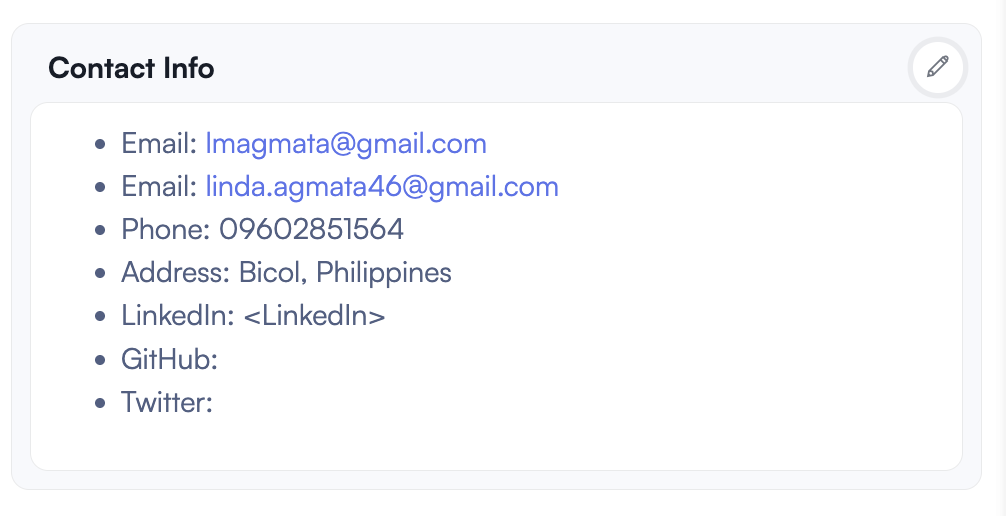
    • Phone Format: Numbers only—no spaces, dashes, or special characters.
    • Empty Fields: If info is missing (e.g., Twitter/GitHub), leave it blank. Do not type "N/A."
    • Sample Correct Format: import-candidate-08.png
  • Click Save Changes on the upper right side of the page.

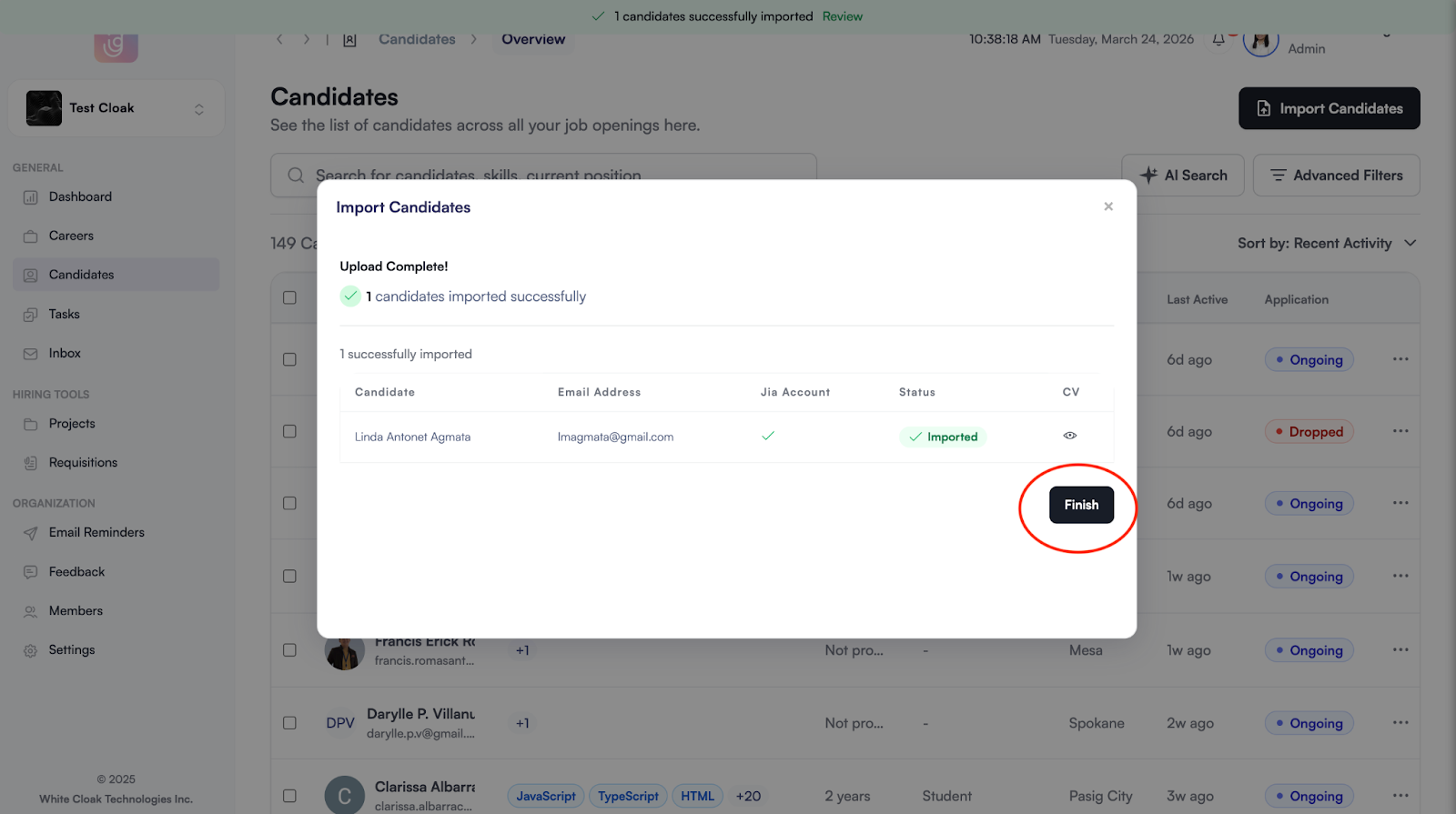
  • Click Finish once done importing candidate information. import-candidate-09.png

Handling Duplicates

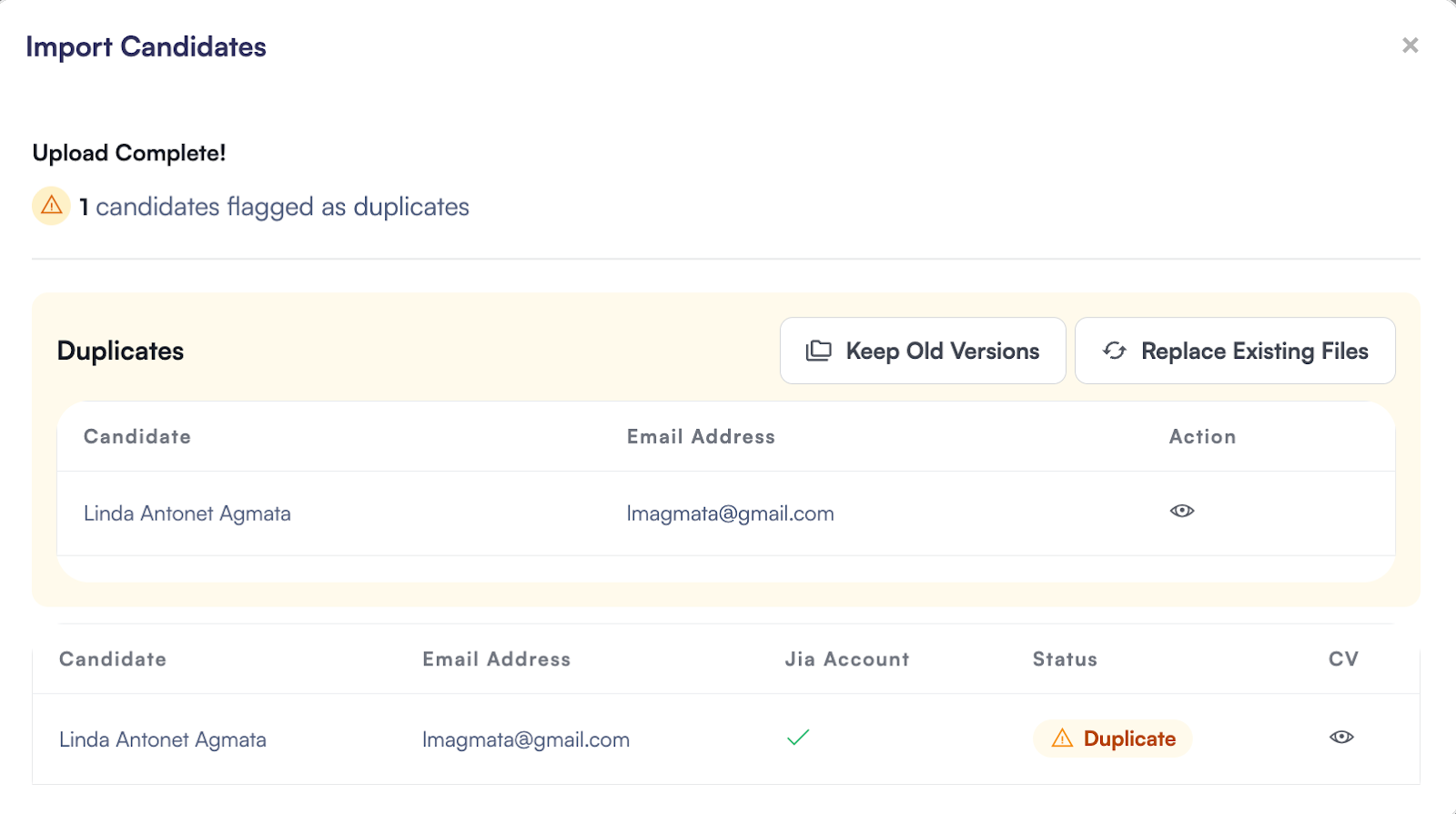
If you are importing a candidate who already exists in the system, you will be prompted to:

  • You have an option to keep the old version or replace the existing file. import-candidate-10.png
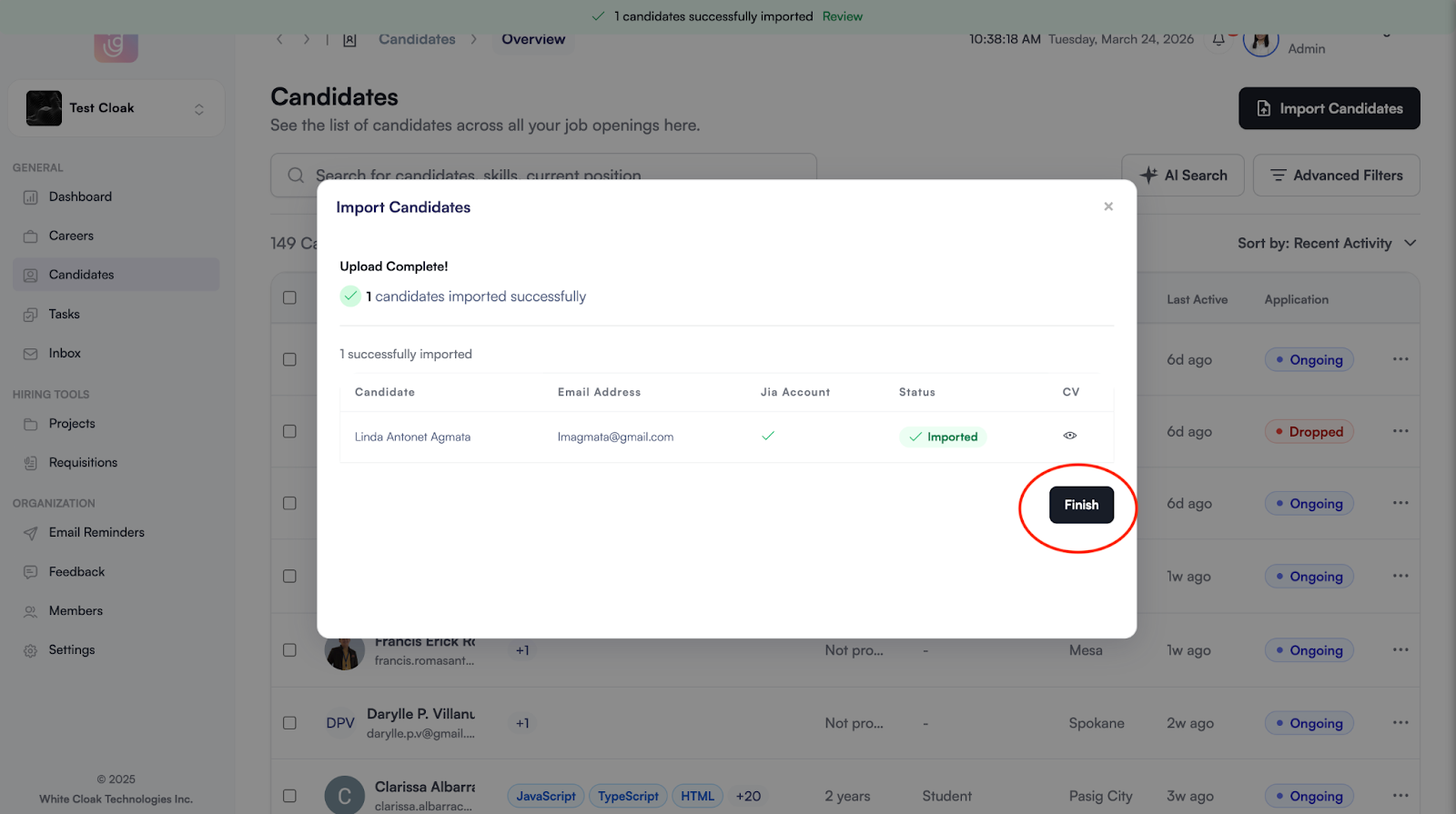
  • Click Finish to complete the process and add the candidates to your database. import-candidate-11.png
Was this article helpful?
Loading feedback…