Jia Dashboard LogoJia Name Logo
Help
Center
Contact Support
Jia Dashboard LogoJia Name Logo
Powered by White Cloak Technologies, Inc.20th Floor, F. Ortigas Jr Strata 2000 Building
San Antonio, Ortigas Center, Pasig, 1605 Metro Manila
LinkedInFacebookTikTok
Sales Team: inquire@hellojia.ai
Development Team: hello@whitecloak.com
© Copyright 2026. All rights reserved.
HomeChevron RightDocumentationCareersChevron RightCreate your first career
Getting started
  • Customize your Dashboard
Careers
  • Create your first career
  • Create a linked career
  • Update career status
  • Customize career settings
Application Timeline
  • Endorse a candidate
  • Drop a candidate
  • Reconsider a candidate
Candidates
  • Import a candidate
  • Quick Search
  • AI Search
  • Advanced Filters
  • View a candidate profile
  • Add a comment
  • Invite to a job
Organization
  • Invite new members
  • Roles
Job Portal
  • Apply to a job
  • AI Interview
  • Manage CV
Subscription, Billing, and Support
  • Subscription Plans
Projects
  • Create a project
  • Link a career
Requisition
  • Create a requisition
  • Requisition Approval
Talent Vault
  • Set-up Talent Vault
Email
  • Inbox
  • Templates
  • Automations
  • Reminders
  • Bulk Email
  • Integration
  • Custom Domain
Miscellaneous
  • Notifications
  • Feedback
Create your first careerLast updated: 01 Apr 2026
Careers

End-to-End Career

An end-to-end career is standalone and contains the standard stages of the hiring process from the CV Screening to Job Offer.

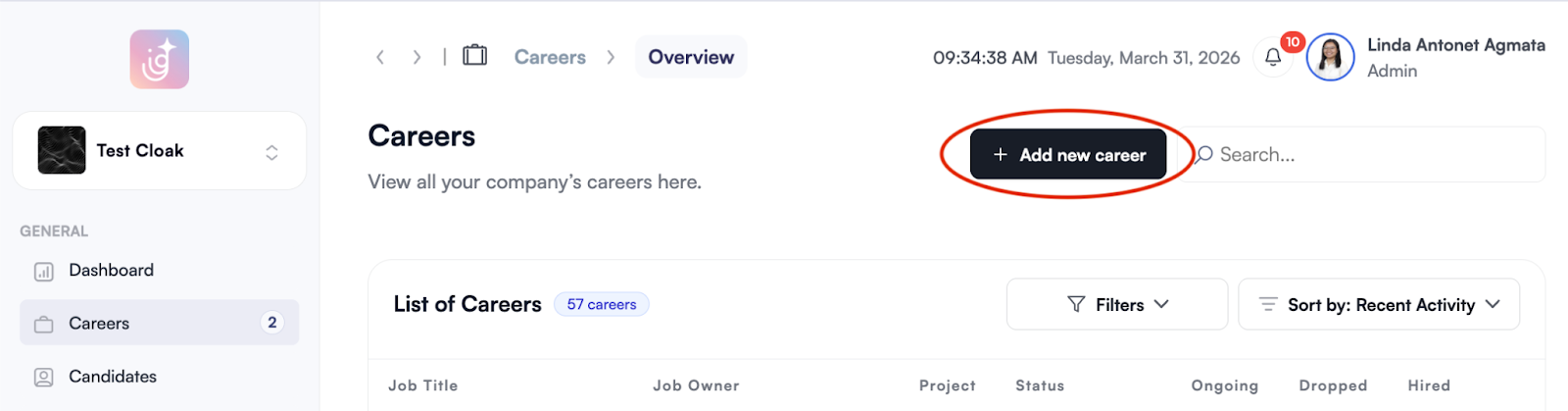
  • In the Careers module, choose Add New Career add-career-01.png
  • Click End-to-End Career and input the required career information. Make sure to fill in all the details. add-career-02.png
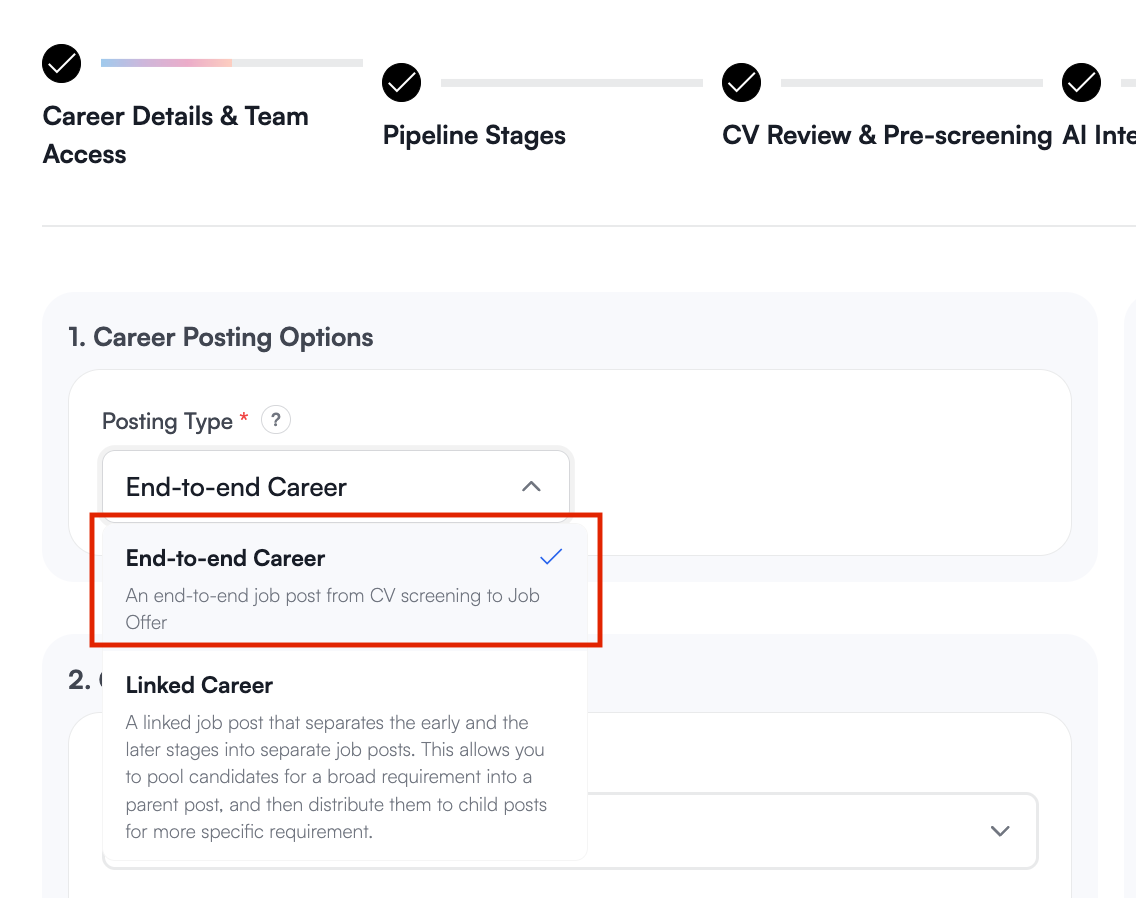
  • Once all information is filled out, click Continue on the upper right side of the page. add-career-03.png

Configure Your Hiring Pipeline

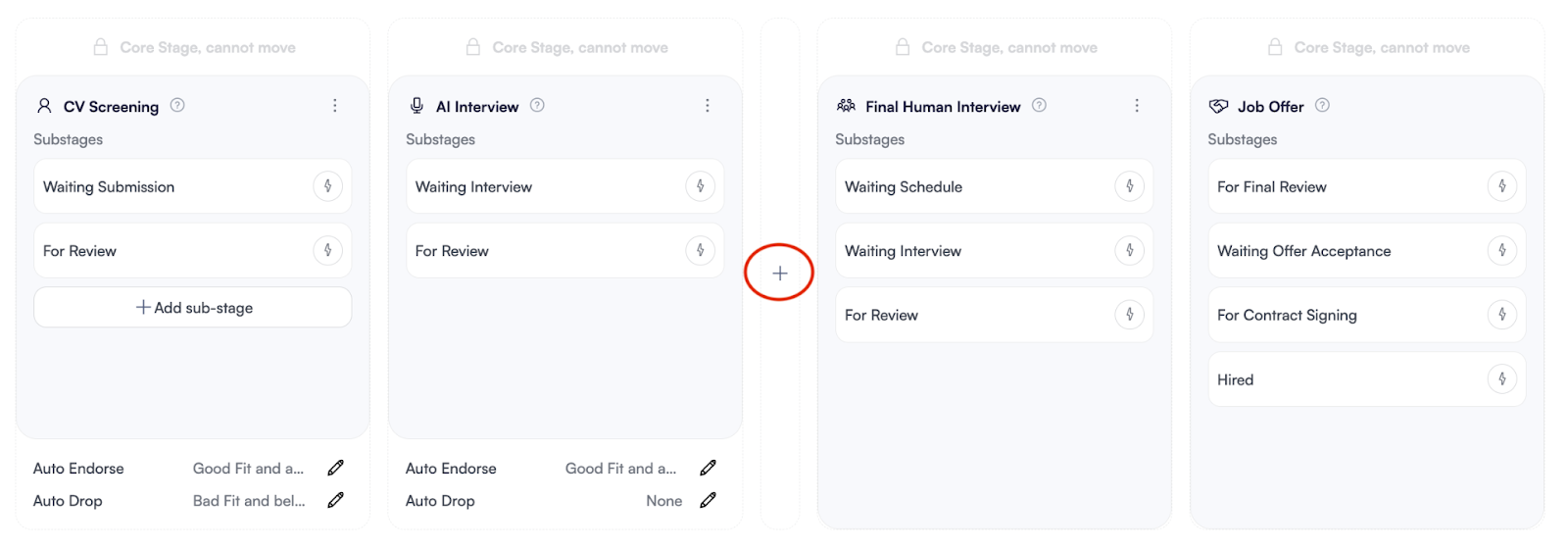
  • In the Pipeline Stages, click the (+) plus button between existing stages to insert a new step in your hiring sequence. Drage stages to move. add-career-04.png
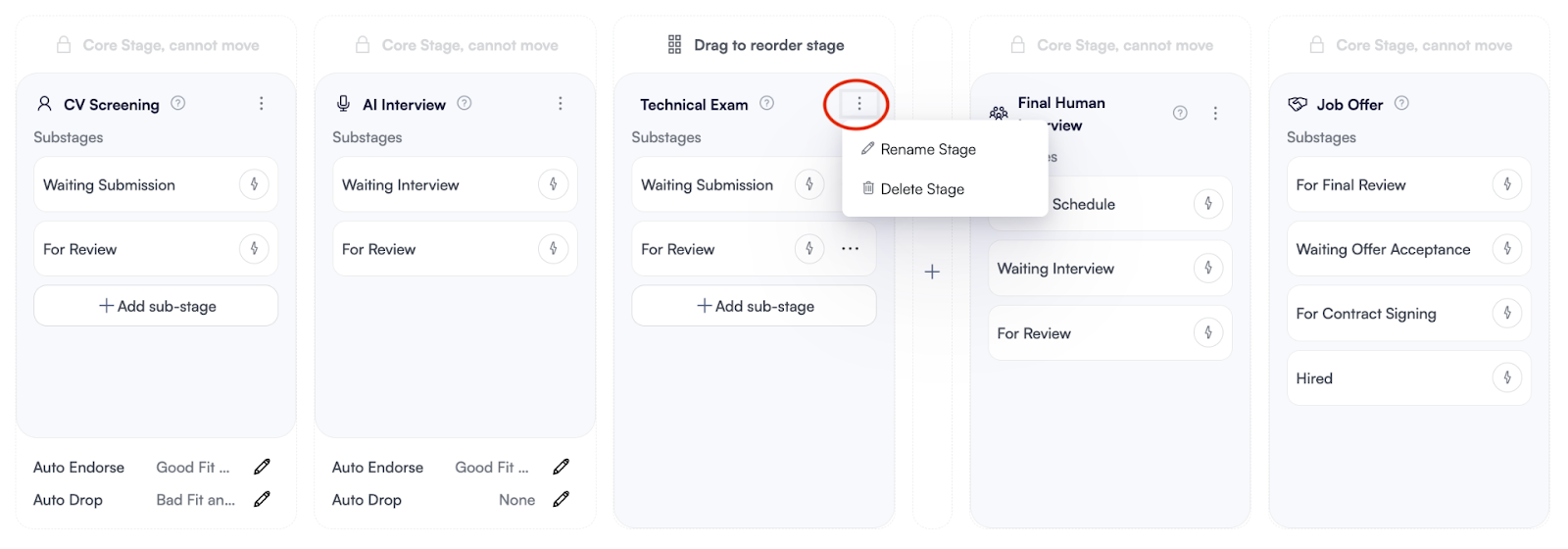
  • To Rename, Delete, or Disable a Stage, click the three-dot menu (⋮) in the upper right corner of the stage. add-career-05.png
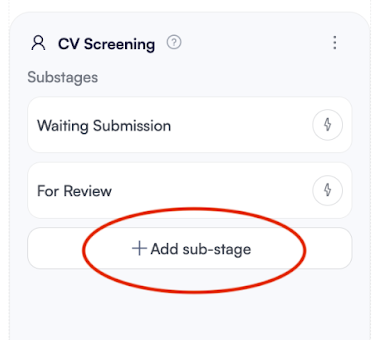
  • Within any Stage, click + Add sub-stage to break down the process into smaller, trackable tasks (e.g., "For Review," "Waiting for Schedule"). add-career-06.png
  • To Customize Automations, click the pencil icon (✎) on the bottom of the CV Screening and AI Interview stage. add-career-07.png
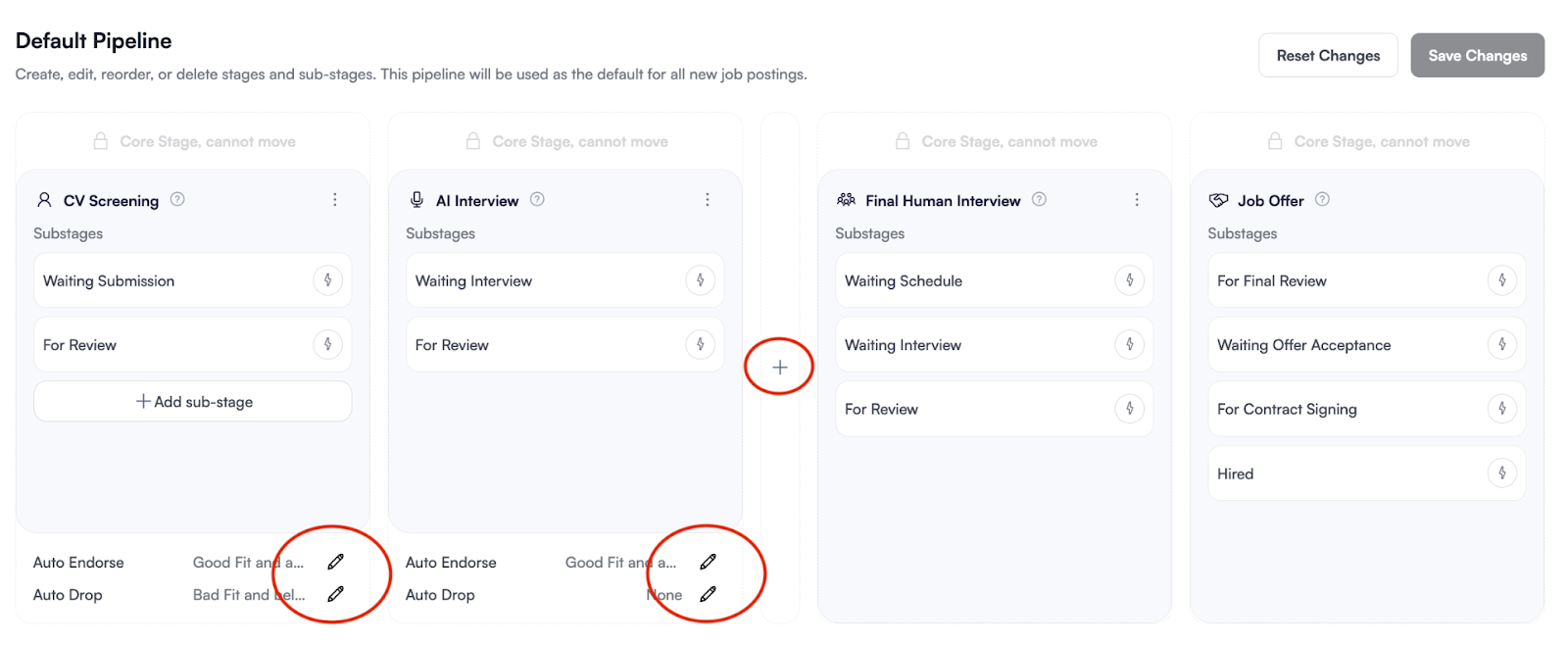
  • Decide how candidates are automatically moved to the next stage:
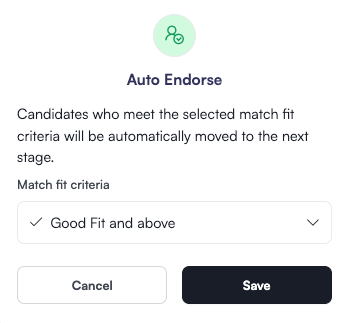
    • Select the "Match Fit" criteria. Candidates who meet this score will automatically progress to the next stage.
    • For Manual Endorsement, choose ‘None.’ add-career-08.png
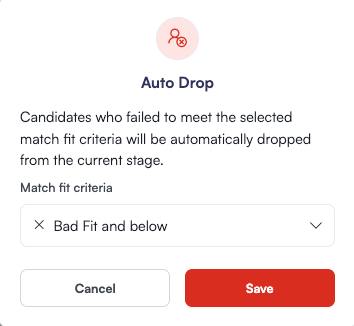
    • To Automatically Drop a Candidate, set the threshold for automatic rejection. If a candidate falls below the ‘Match Fit’ criteria, they will be moved to the "Dropped" category.
    • For Manual Dropping, choose ‘None.’ add-career-09.png
  • Ensure that each stage and automation reflects your real-world recruitment flow. Click Continue in the upper-right corner to proceed.

Advanced Evaluation and AI Set-Up

  • Configure CV Review & Pre-Screening Details
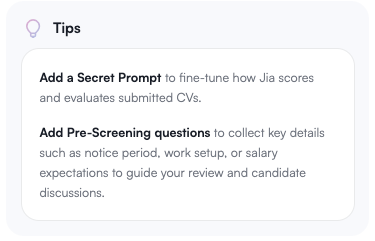
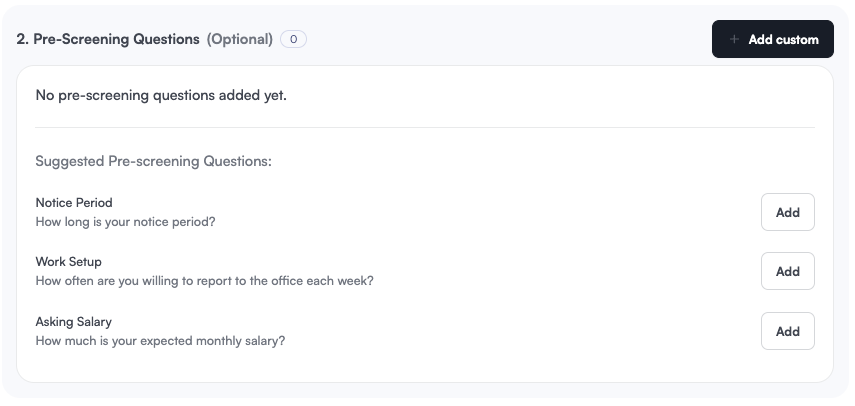
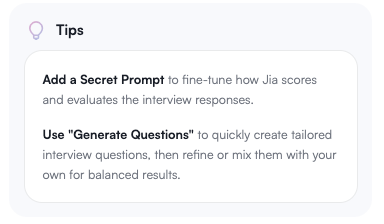
    • Use Secret Prompts to fine-tune how Jia evaluates candidates based on your preferences. These criteria are internal and not visible in the job description add-career-10.png add-career-11.png
  • Set up AI Interview

    • Generate AI-powered AI interview questions or add your own custom questions
    • Use Secret Prompts to gain extra control over how Jia evaluates a candidate’s interview responses. add-career-12.png

Final Review

  • Review Career Details and click Publish add-career-13.png
Was this article helpful?
Loading feedback…